> ## Documentation Index
> Fetch the complete documentation index at: https://tools.lunchpaillabs.com/llms.txt
> Use this file to discover all available pages before exploring further.
# Add custom buttons
export const feature_0 = "action"
🔐 Bundle plugin only: This {feature_0} is exclusive to the [Video, Audio & Live
Bundle](/bubble/video-audio-live-bundle/getting-started). Get the bundle
plugin
[here](https://bubble.io/plugin/video-audio--live-bundle-1727441795463x240182085842370560).
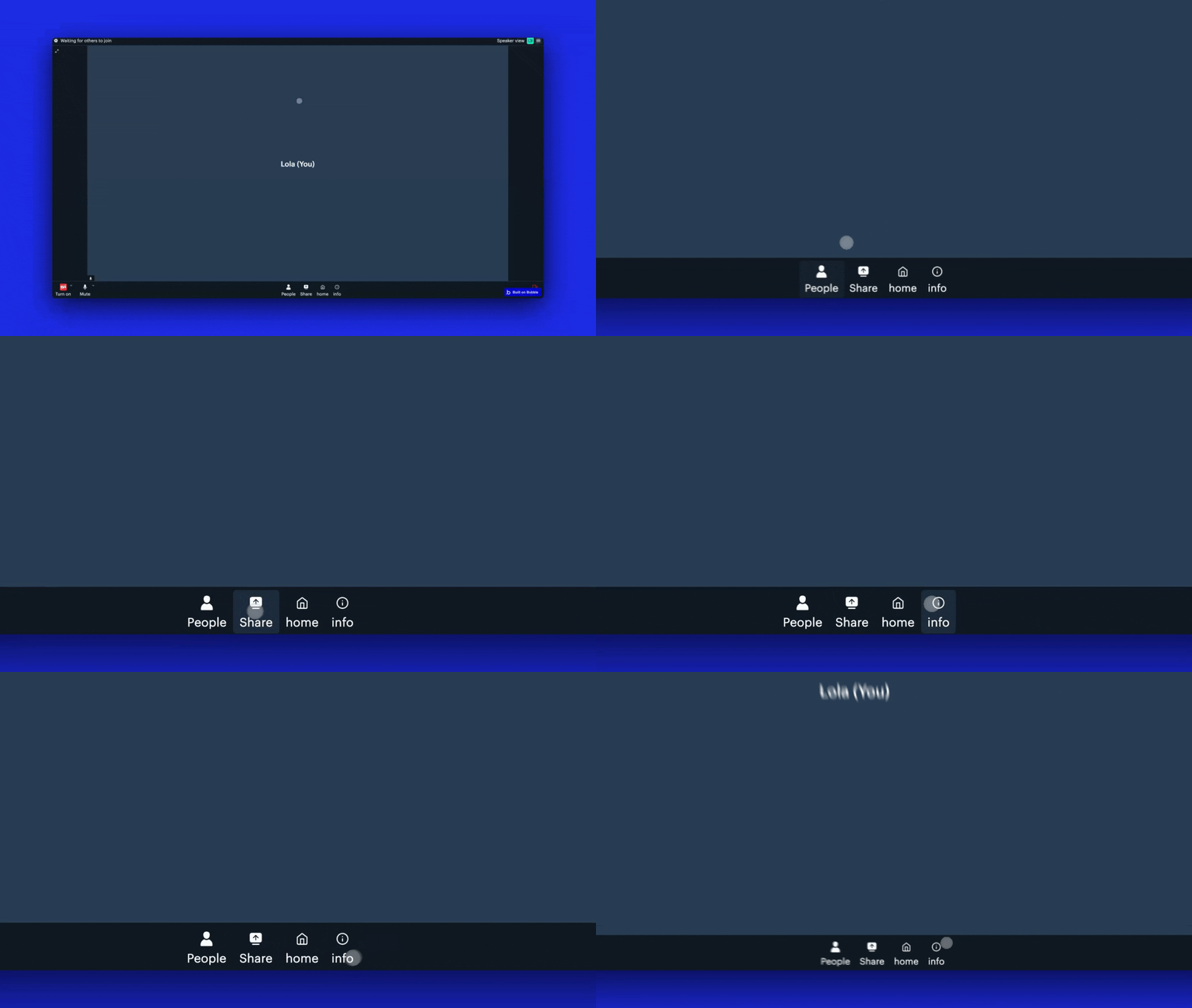
Sometimes, you want to add a custom button in Daily Prebuilt to trigger actions in your Bubble app, such as opening a new page, updating a database, or starting a custom workflow or transcription.
## Video tutorial
If you prefer a video walkthrough, check out our step-by-step tutorial below. Otherwise, keep reading for the written guide:
## Steps
### 1. Add the Bundle Daily Events element
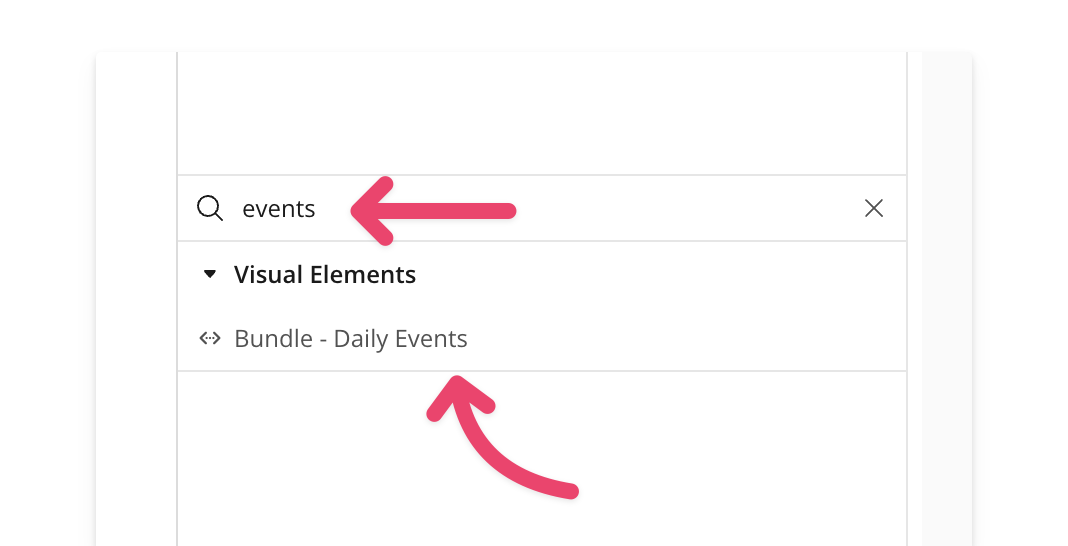
Place the [**Bundle Daily Events**](/bubble/daily/plugin-reference/elements/daily-events) element on your page. A common practice is to place it inside a hidden popup, keeping it offscreen while it listens for events.
### 2. Start listening for events
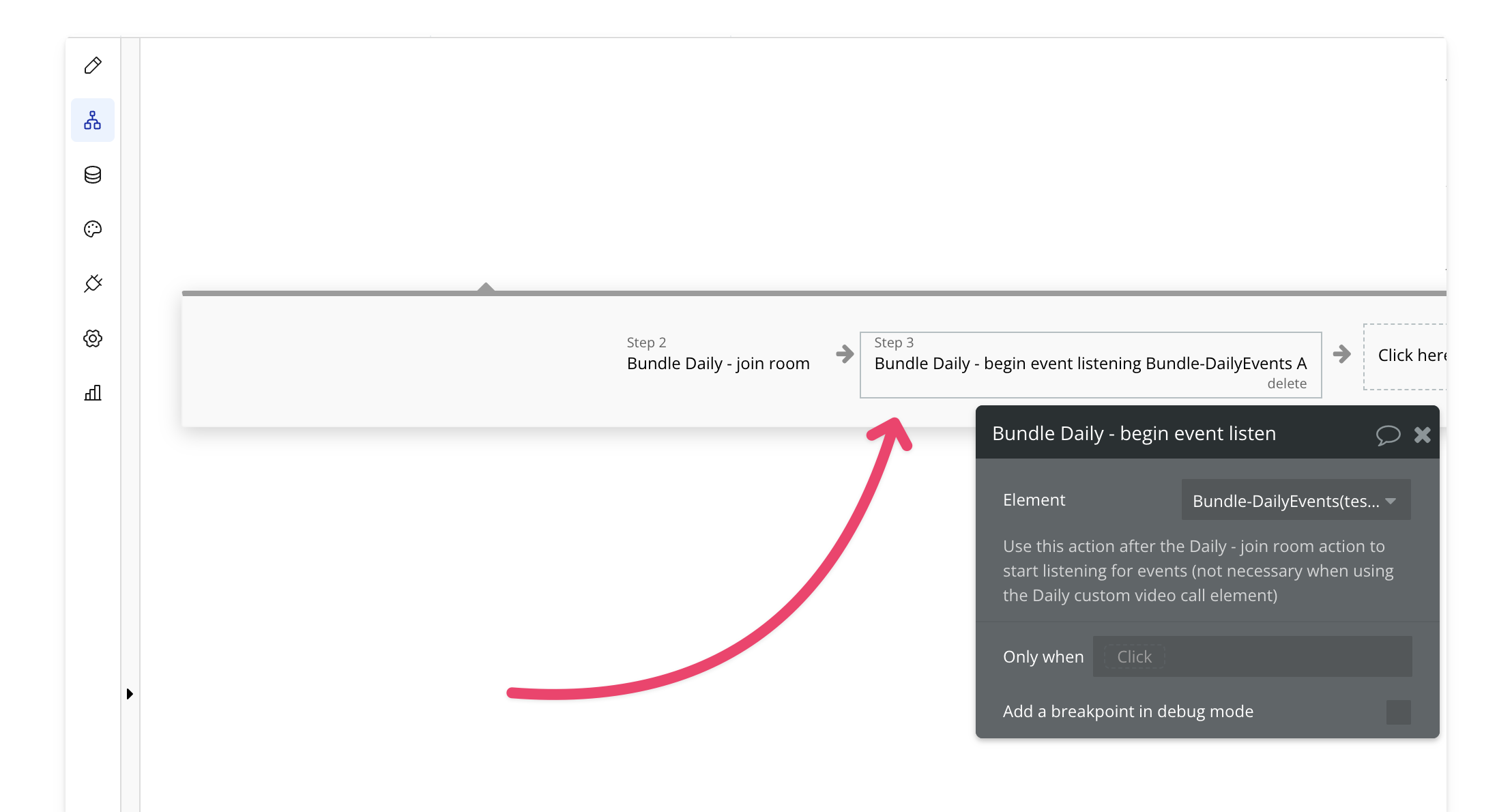
After joining the room, add the `begin listening` action. This ensures Bubble can capture and process events, such as the `custom-button-click` event, triggering the desired action when a user clicks the button.
### 3. Add the `Joined-Meeting` Event and Set Custom Button
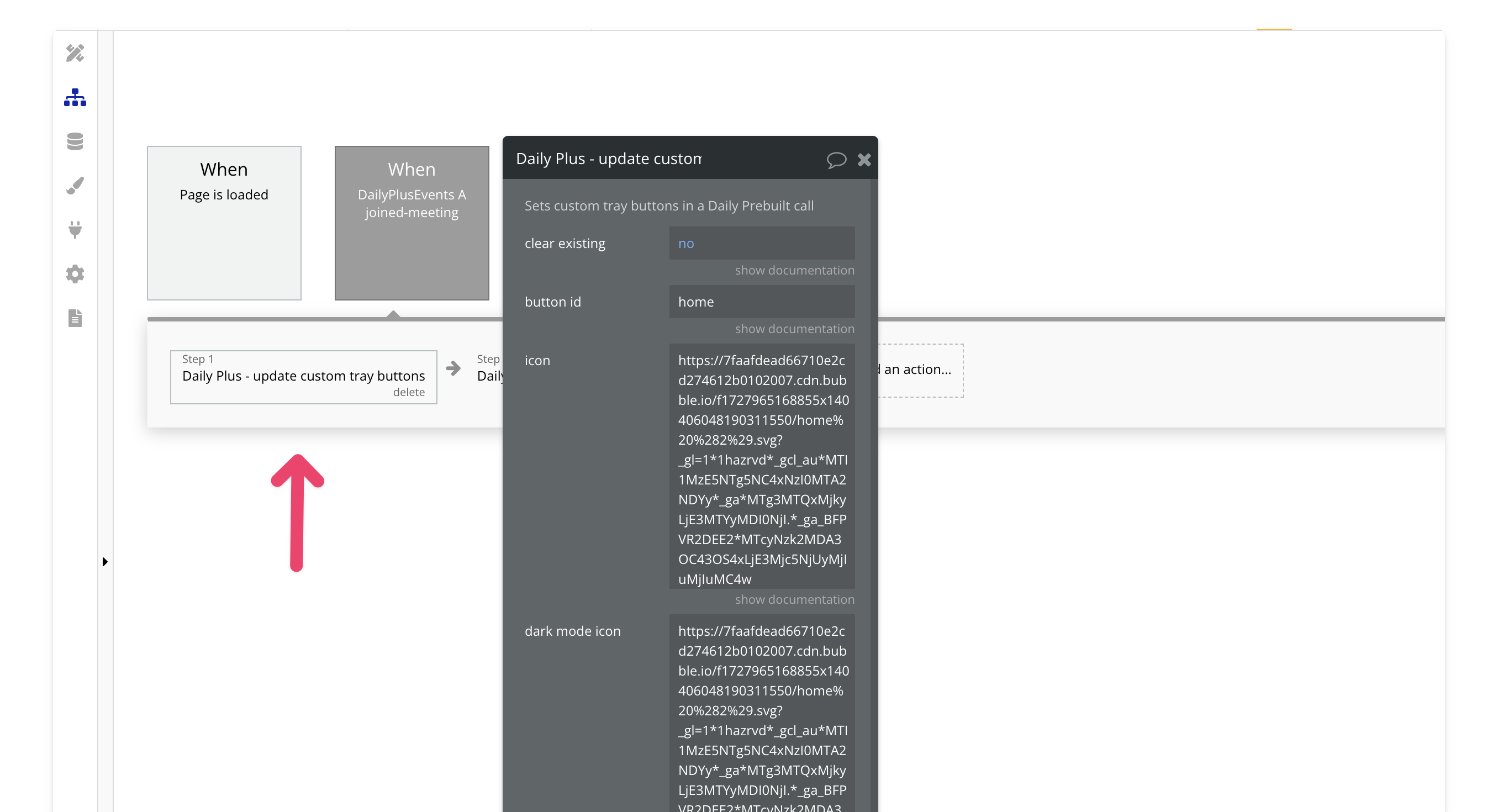
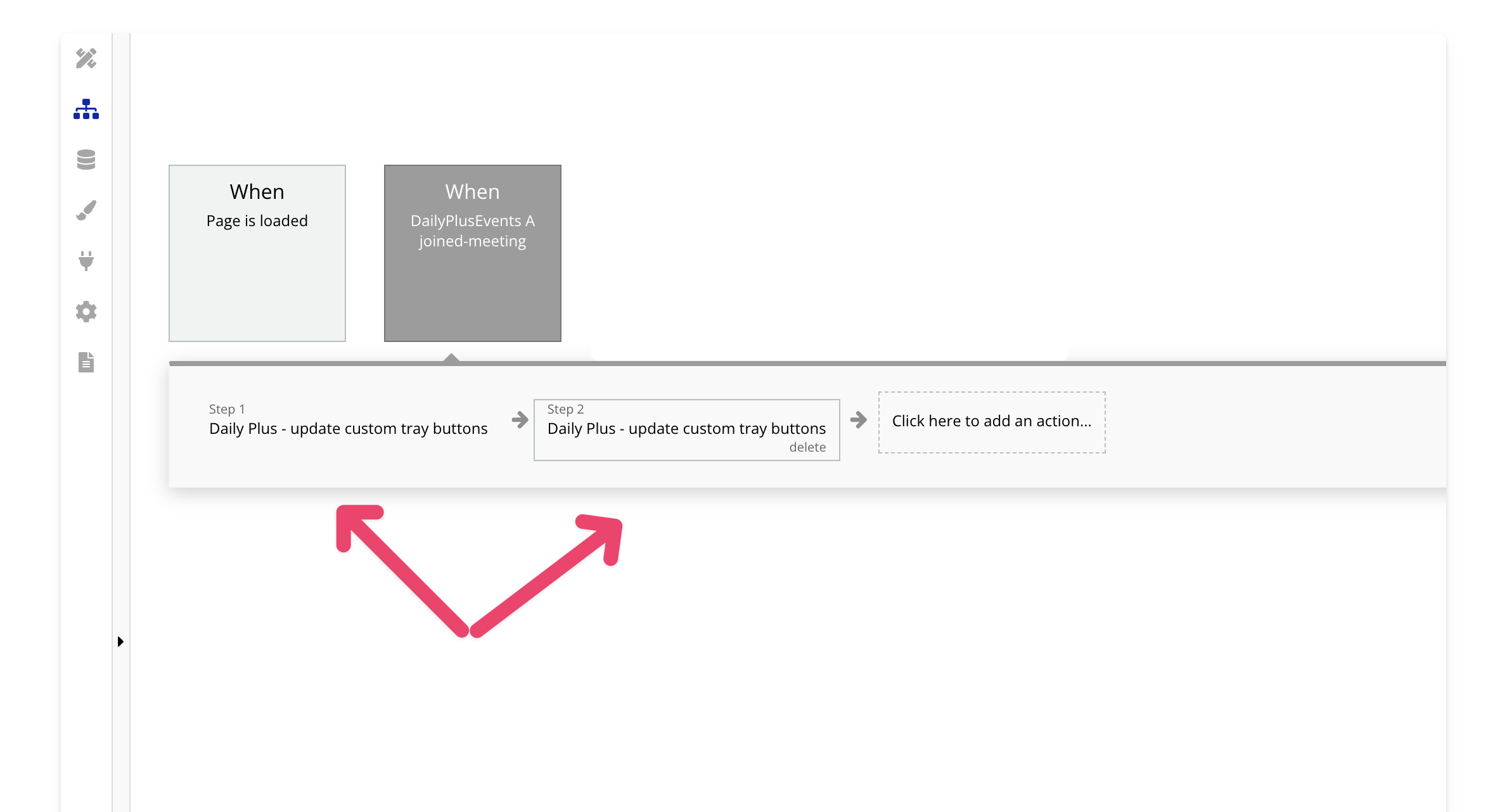
Next, add the `joined-meeting` event and use the action to [update a custom button](/bubble/daily/plugin-reference/actions/update-custom-tray-buttons).
### 4. Listen for the `custom-button-click`
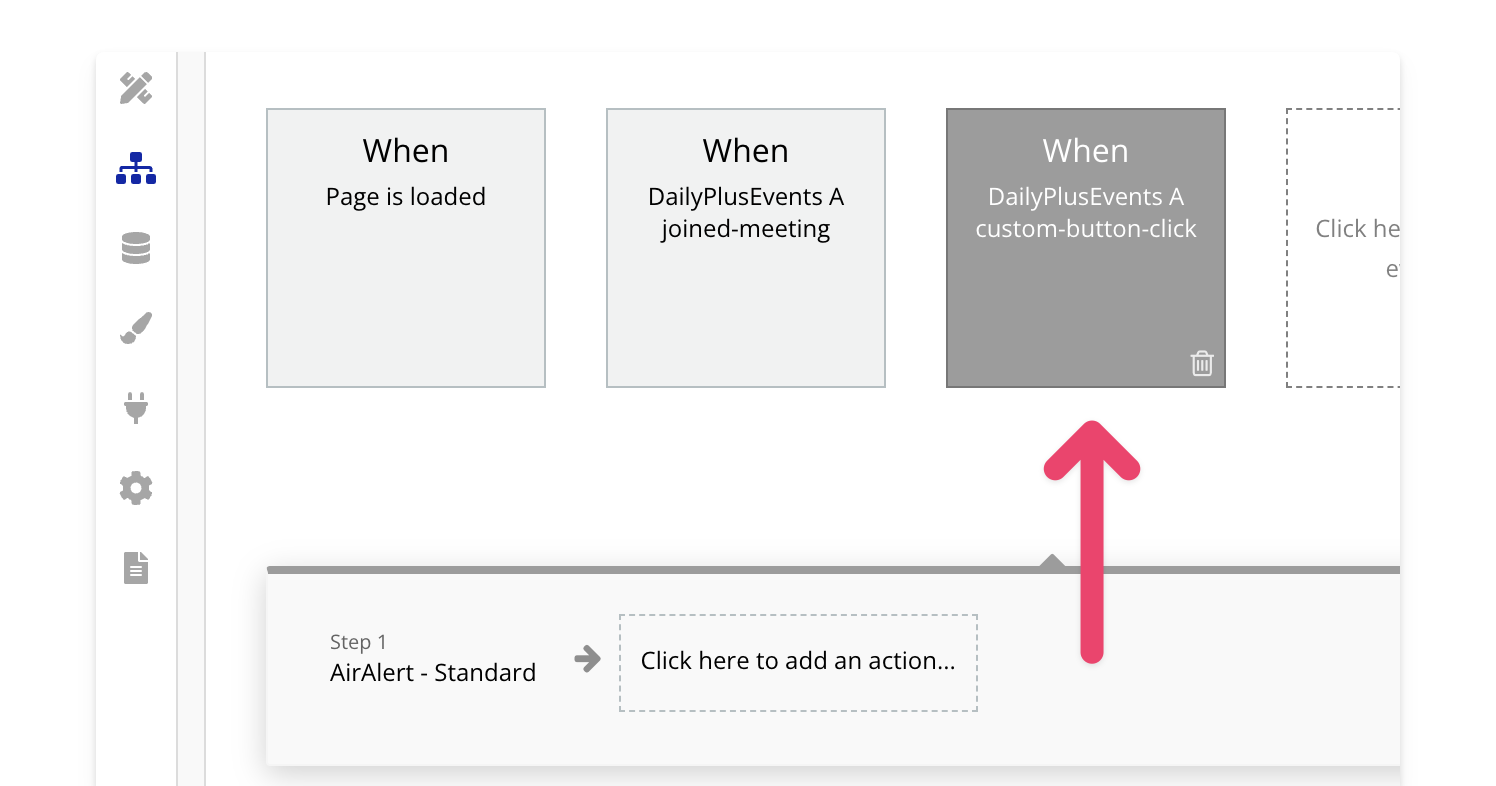
Add the `custom-button-click` event and include the logic to take action in your app whenever the button is clicked.
## How to set multiple buttons
You can use the [update custom buttons](/bubble/daily/plugin-reference/actions/update-custom-tray-buttons) action multiple times to set multiple buttons. Just set the `clear existing` field to `no`.
View our options for free community and priority support.
Post your feature request on our
idea board.
 ## Video tutorial
If you prefer a video walkthrough, check out our step-by-step tutorial below. Otherwise, keep reading for the written guide:
## Steps
### 1. Add the Bundle Daily Events element
Place the [**Bundle Daily Events**](/bubble/daily/plugin-reference/elements/daily-events) element on your page. A common practice is to place it inside a hidden popup, keeping it offscreen while it listens for events.

### 2. Start listening for events
After joining the room, add the `begin listening` action. This ensures Bubble can capture and process events, such as the `custom-button-click` event, triggering the desired action when a user clicks the button.

### 3. Add the `Joined-Meeting` Event and Set Custom Button
Next, add the `joined-meeting` event and use the action to [update a custom button](/bubble/daily/plugin-reference/actions/update-custom-tray-buttons).

### 4. Listen for the `custom-button-click`
Add the `custom-button-click` event and include the logic to take action in your app whenever the button is clicked.

## How to set multiple buttons
You can use the [update custom buttons](/bubble/daily/plugin-reference/actions/update-custom-tray-buttons) action multiple times to set multiple buttons. Just set the `clear existing` field to `no`.

## Video tutorial
If you prefer a video walkthrough, check out our step-by-step tutorial below. Otherwise, keep reading for the written guide:
## Steps
### 1. Add the Bundle Daily Events element
Place the [**Bundle Daily Events**](/bubble/daily/plugin-reference/elements/daily-events) element on your page. A common practice is to place it inside a hidden popup, keeping it offscreen while it listens for events.

### 2. Start listening for events
After joining the room, add the `begin listening` action. This ensures Bubble can capture and process events, such as the `custom-button-click` event, triggering the desired action when a user clicks the button.

### 3. Add the `Joined-Meeting` Event and Set Custom Button
Next, add the `joined-meeting` event and use the action to [update a custom button](/bubble/daily/plugin-reference/actions/update-custom-tray-buttons).

### 4. Listen for the `custom-button-click`
Add the `custom-button-click` event and include the logic to take action in your app whenever the button is clicked.

## How to set multiple buttons
You can use the [update custom buttons](/bubble/daily/plugin-reference/actions/update-custom-tray-buttons) action multiple times to set multiple buttons. Just set the `clear existing` field to `no`.
