> ## Documentation Index
> Fetch the complete documentation index at: https://tools.lunchpaillabs.com/llms.txt
> Use this file to discover all available pages before exploring further.
# Set up the plugin
This guide walks you through how to set up the Liveblocks plugin in your Bubble app and find your keys. If you prefer a video walkthrough, check out our step-by-step tutorial below. Otherwise, keep reading for the written guide:
## Steps
### **Prerequisites**:
Ensure you have a [Liveblocks account](https://liveblocks.io/signup) and a [Bubble account](https://bubble.io/login?mode=signup). The free accounts for both services are more than enough to get started.
### 1. **Create a new app**
First, you'll need to create a new app in Bubble. Sign into Bubble, head to the [apps tab](https://bubble.io/home/apps) in your Bubble account, and click on the "Create new app" button.

You won't need a template.

You can start with the basic features and skip the application assistant.
### 2. **Head to the plugins tab**
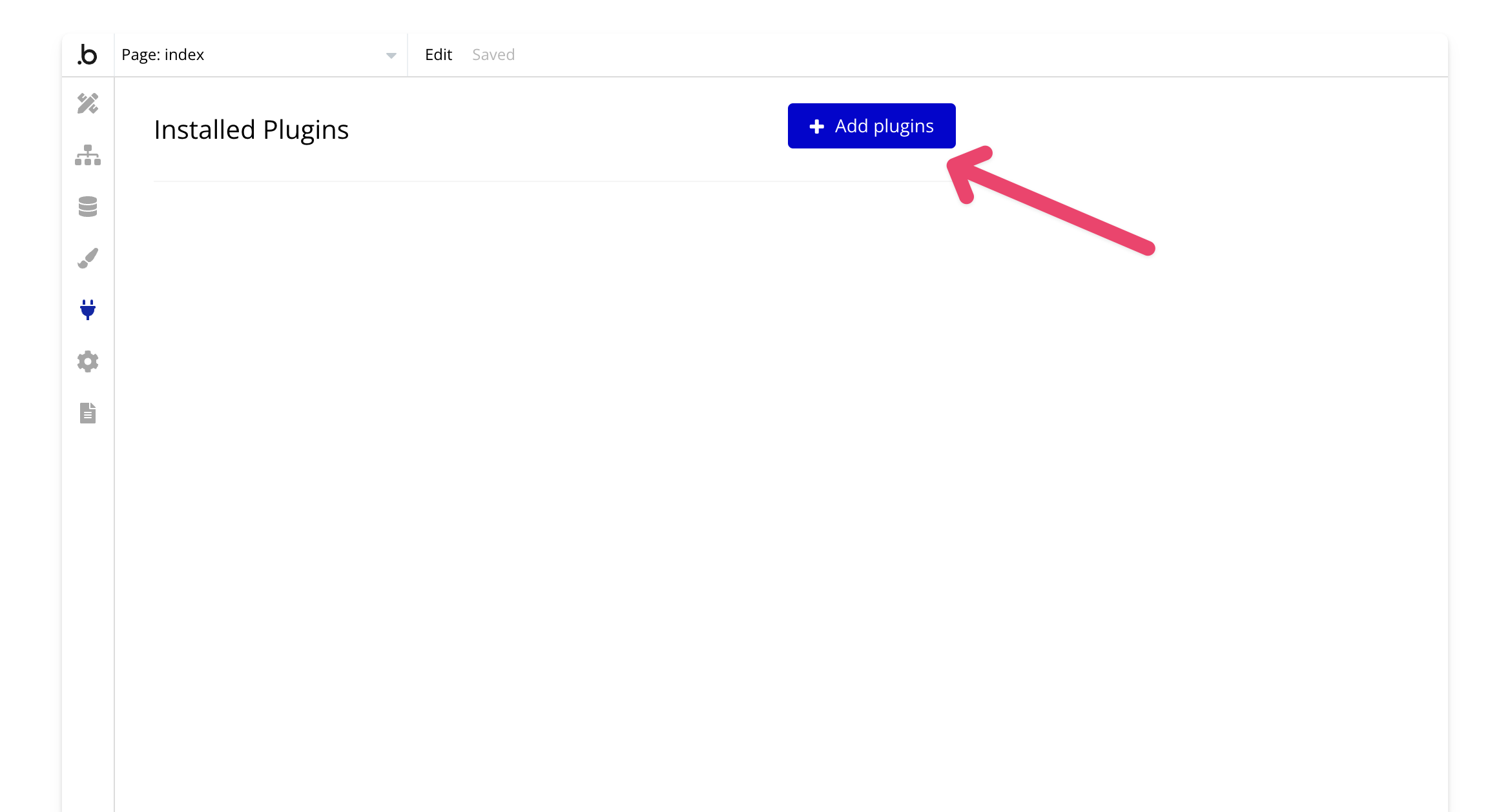
Now that you're in the app editor, head to the plugins tab.

Select "Add plugins."
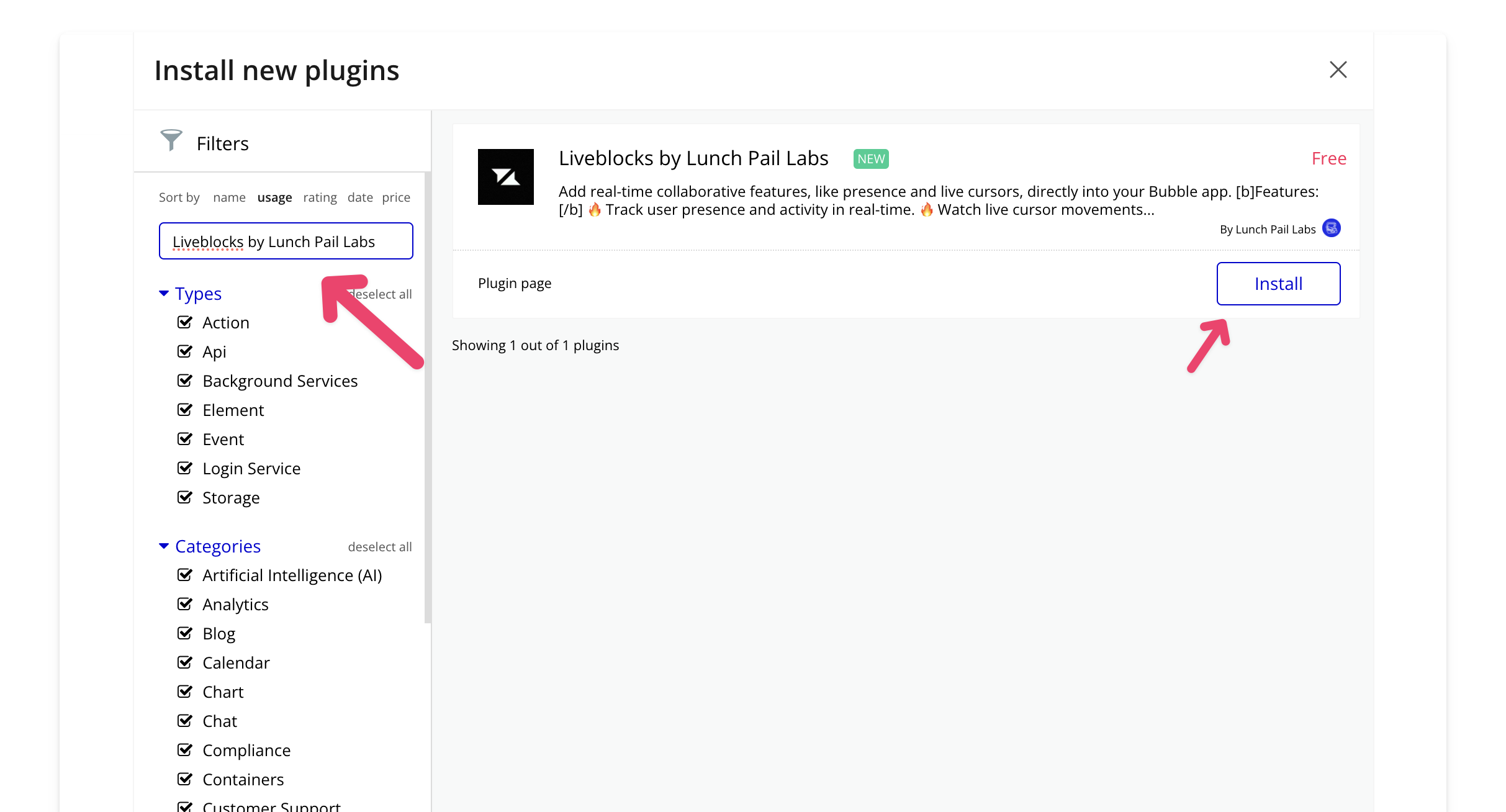
Search for "Liveblocks by Lunch Pail Labs" and click install.
### 3. **Create a Liveblocks project**
Now you should see the Liveblocks plugin in the plugins tab.
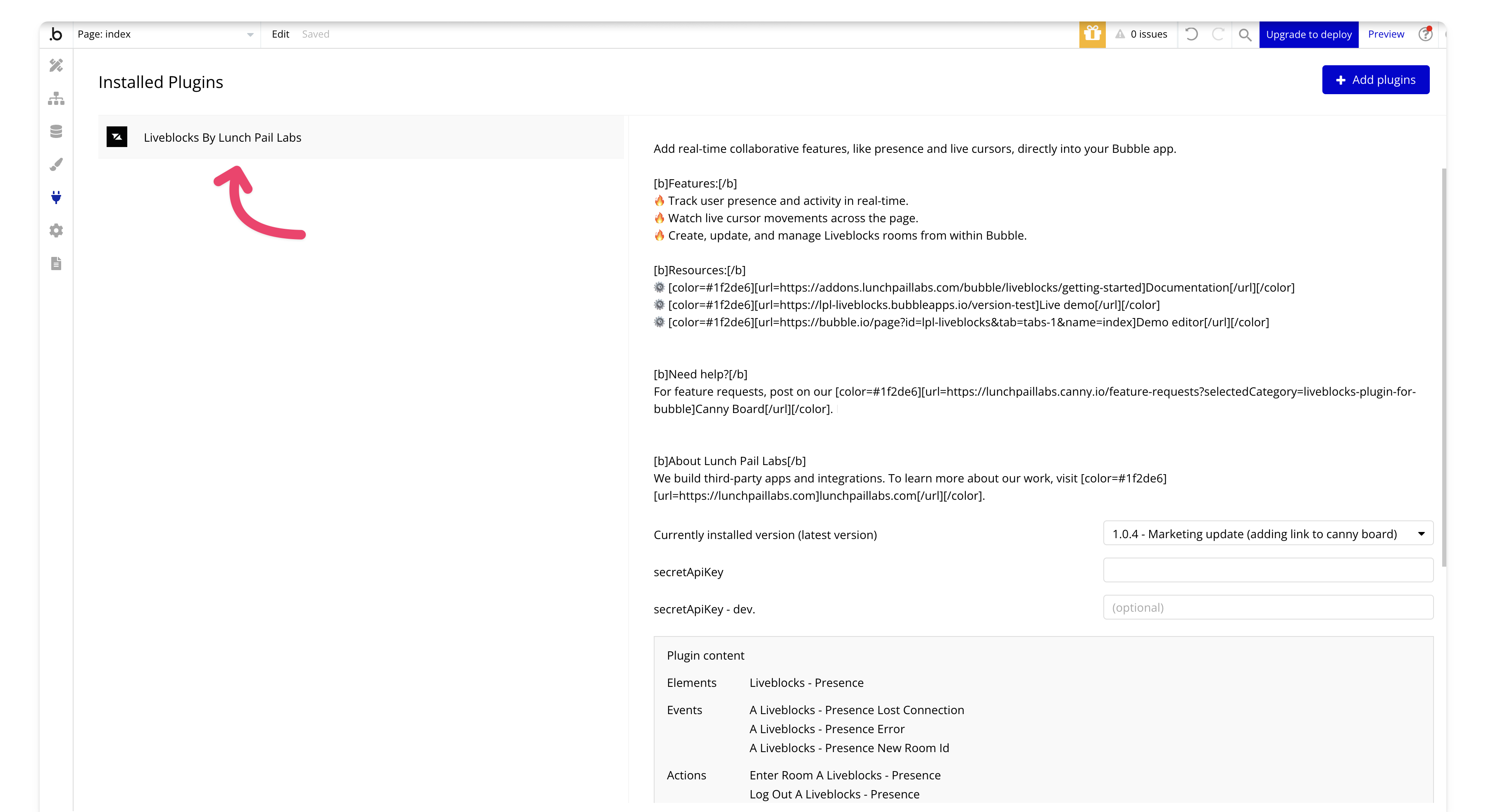
You'll need to add your secret key to your app, so go to your [Liveblocks dashboard](https://liveblocks.io/dashboard/settings/api-keys).
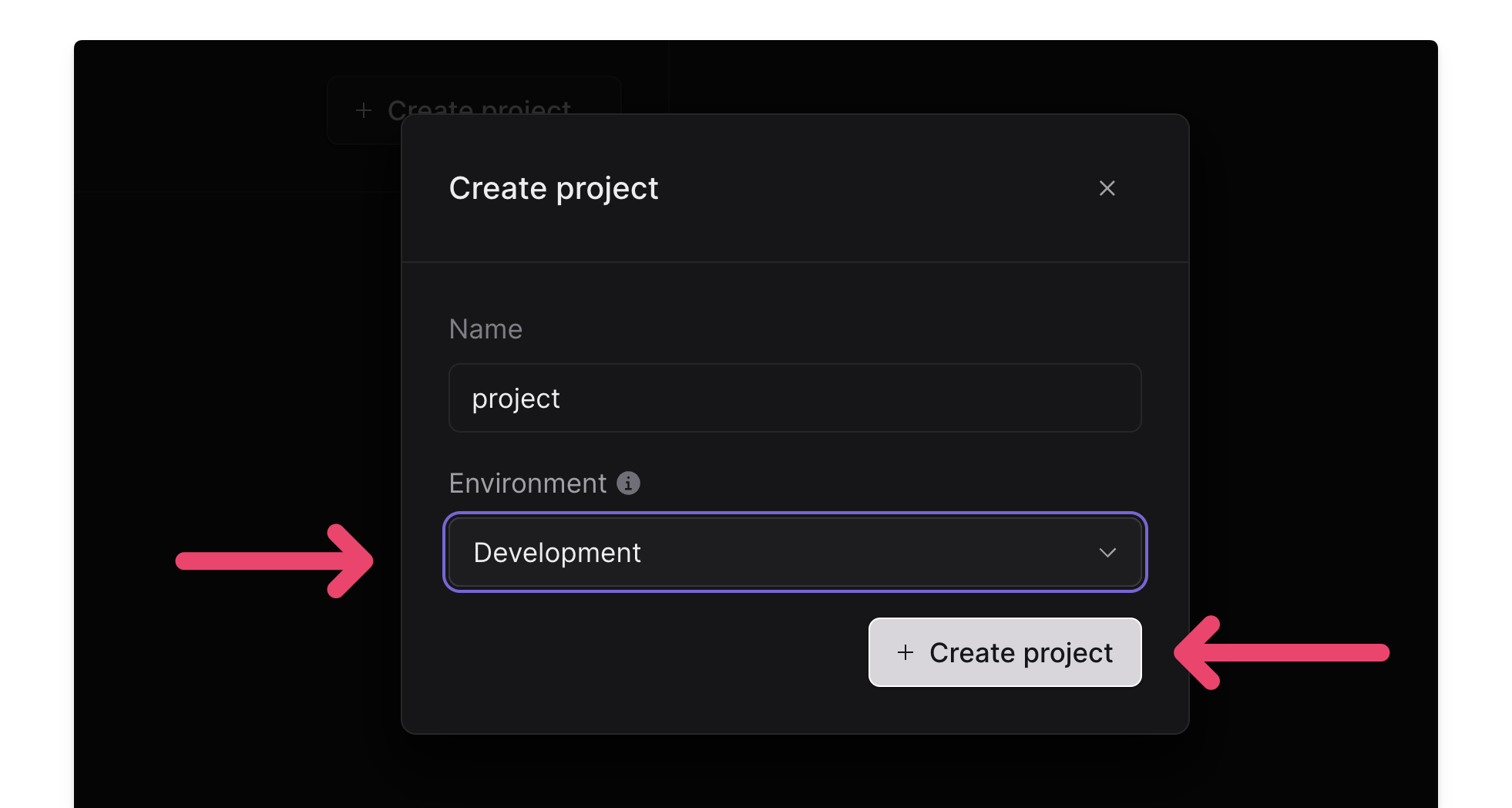
Add a project if you don't already have one.

For this demo, we'll set up a development project, but in a live production environment, you'll want to create a production environment as well.
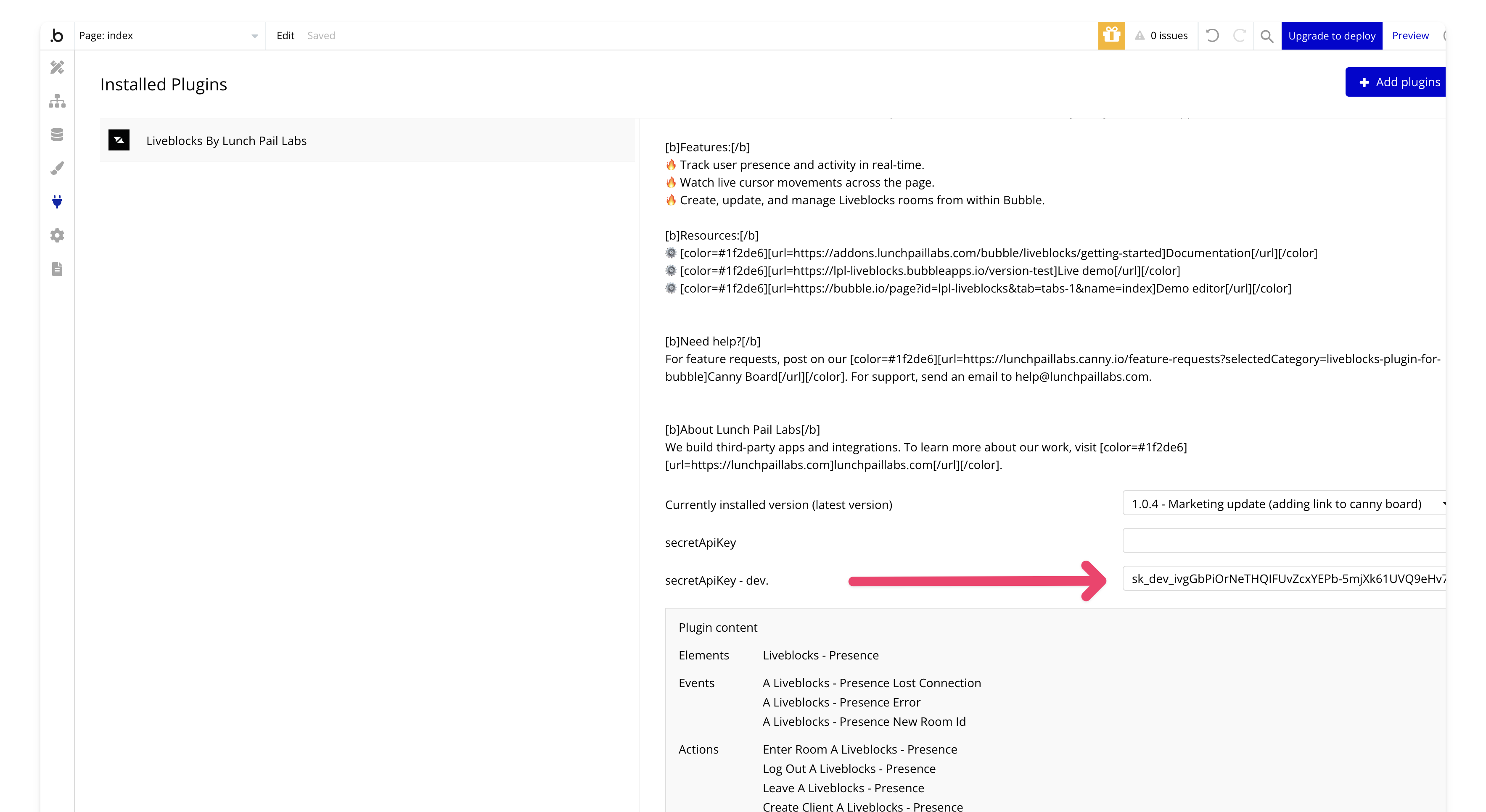
### 4. **Add your secret key to the Liveblocks plugin**
Go to the API Keys tab and reveal your key and copy it,

Next, paste the key into the dev field of the Liveblocks plugin. When you move to production, be sure to create a production project and use the production key.
In the PLUS version of the plugin, make sure to add your key to the authorization field, and remember to prepend Bearer before your API key.
⚠️ Remember, keys are sensitive—keep them secure to avoid unauthorized access and potential charges on your account.
## Next Steps
That's it for setting up the plugin! You now have it installed and ready to go.
View our options for free community and priority support.
Post your feature request on our
idea board.