> ## Documentation Index
> Fetch the complete documentation index at: https://tools.lunchpaillabs.com/llms.txt
> Use this file to discover all available pages before exploring further.
# Add youtube videos
Enhance your Bubble app by embedding YouTube videos directly into the Player Style Video Plugin. Whether you’re sharing tutorials, demos, or multimedia content, this guide will walk you through setting up YouTube videos in just a few steps. Here’s how to make your app’s player more dynamic.
## Video tutorial
If you prefer a video walkthrough, check out our step-by-step tutorial below. Otherwise, keep reading for the written guide:
## Steps
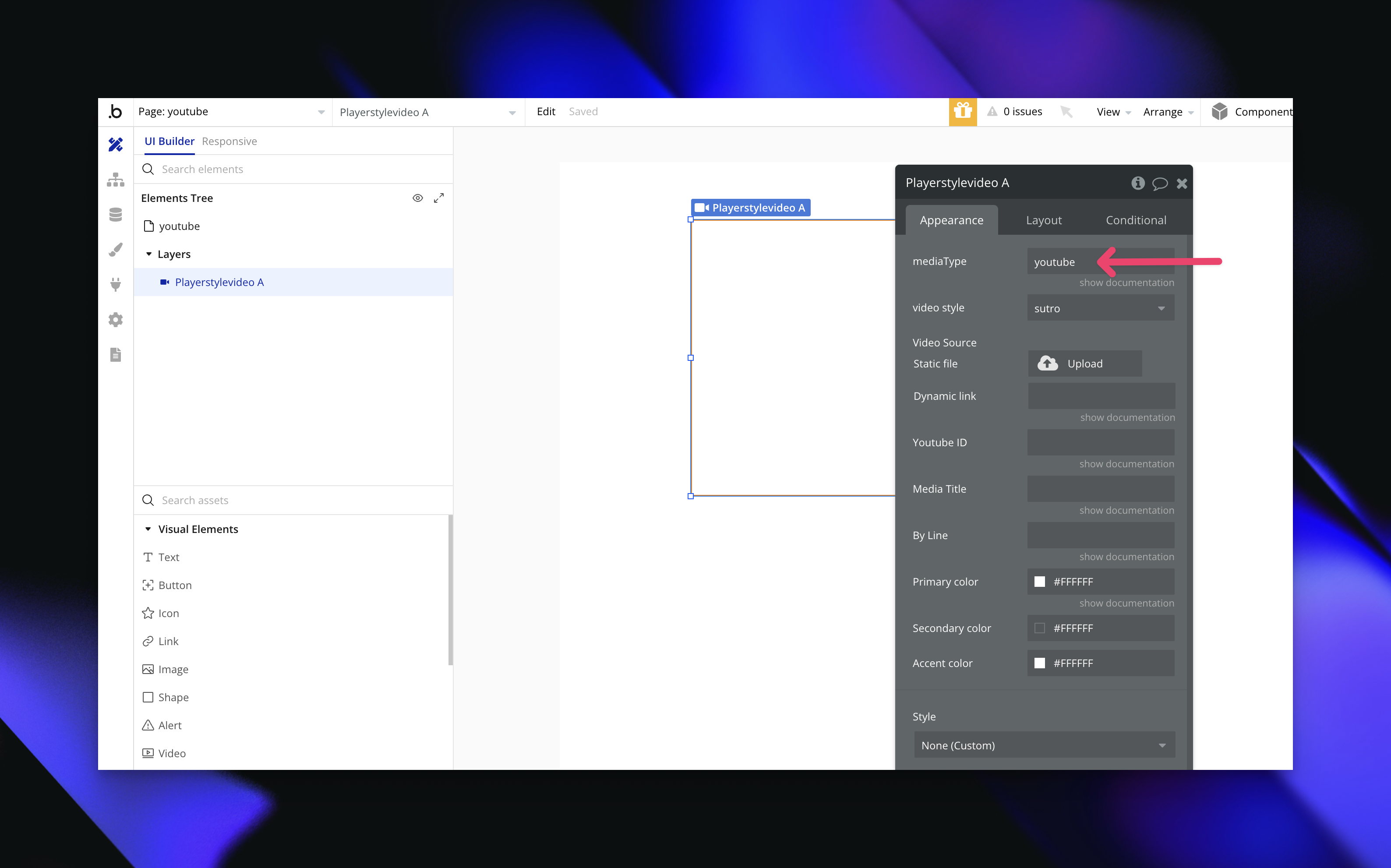
Go to the settings, and change the media type to `YouTube` to enable YouTube as the video source.
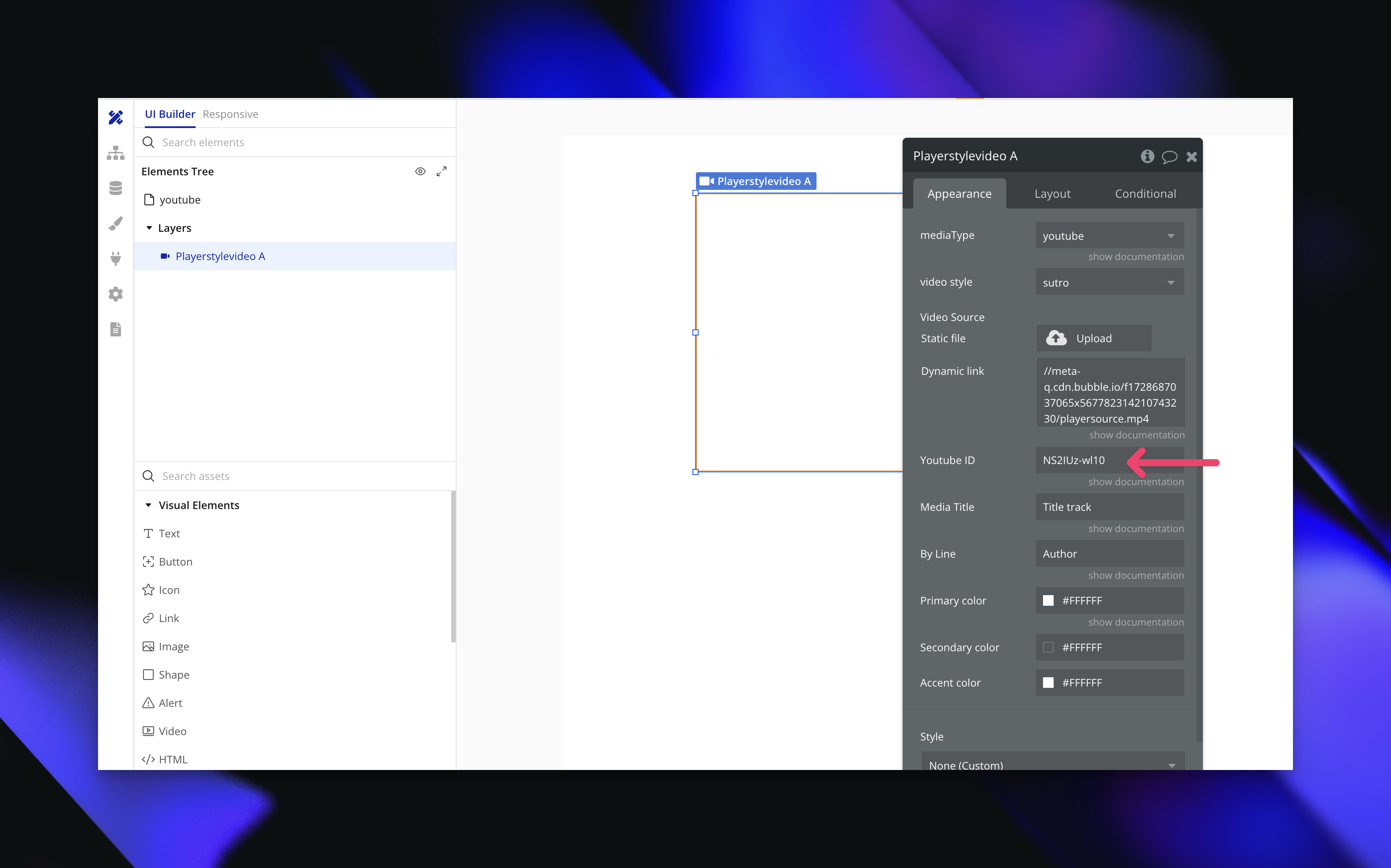
The YouTube video ID is the unique set of characters at the end of a YouTube URL. For example, in this URL:
```
https://www.youtube.com/watch?v=dQw4w9WgXcQ
```
The video ID is `dQw4w9WgXcQ`. Copy this ID and paste it into the Video ID field in the plugin settings.
Choose from 11 unique player styles to match your app’s look and feel. Experiment with different styles to find the one that best fits your app’s design and video content.
With these settings, you’re ready to add dynamic video content from YouTube directly into your Bubble app. From product demos to user tutorials, integrating YouTube into your player setup opens up a world of possibilities.
View our options for free community and priority support.
Post your feature request on our
idea board.