

What This Workflow Does
This workflow creates and joins a private Daily video call room in full-screen mode with knocking enabled. In a live app, you’d likely save the room details in your database—but this workflow provides the core structure to create and join a private room where only authorized users can enter immediately, while others must knock to request access.How It Works
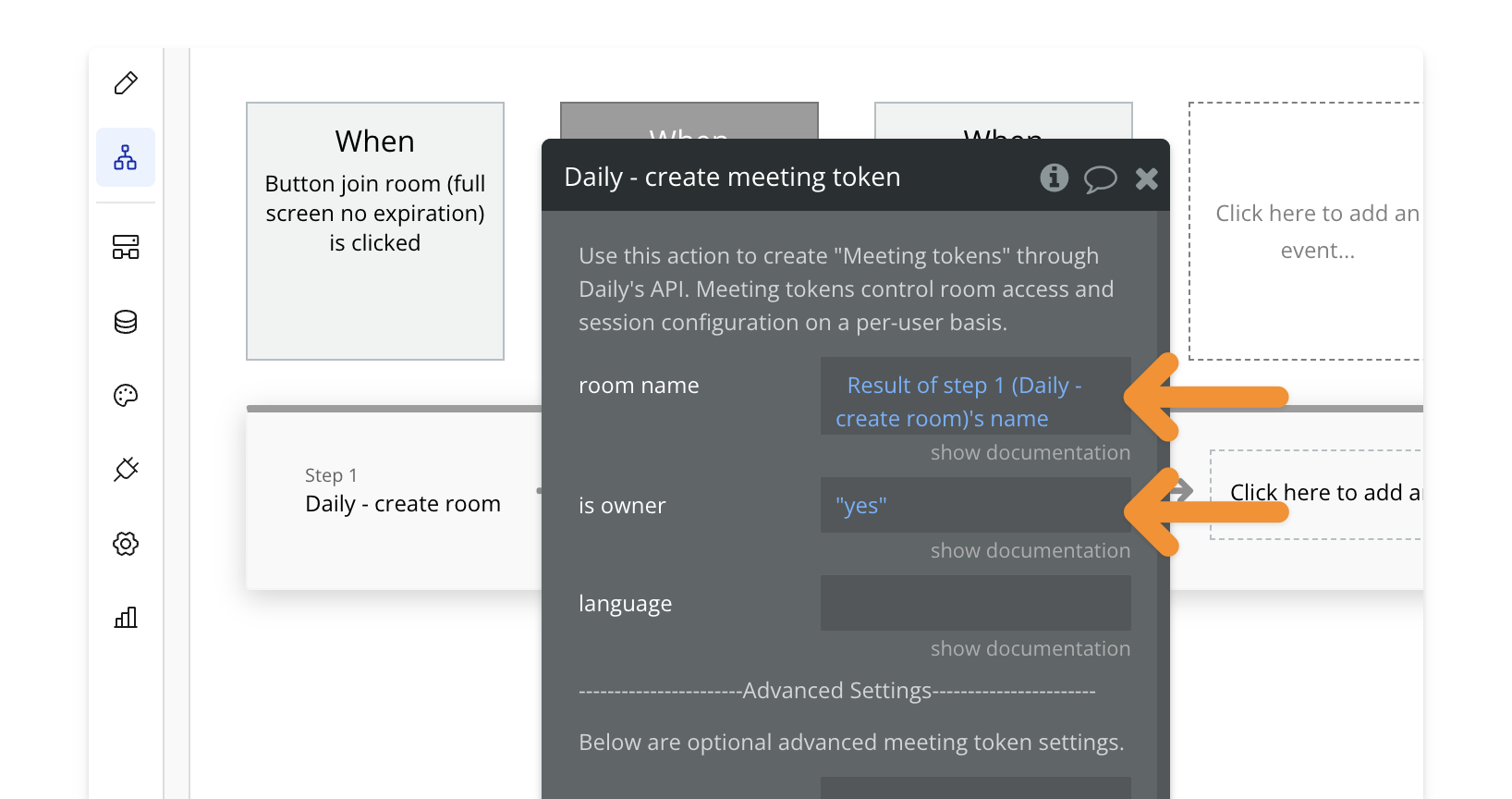
This workflow has three key actions: 1️⃣ Create a Private Room → The room is created with knocking enabled, meaning users without a token must knock to request access.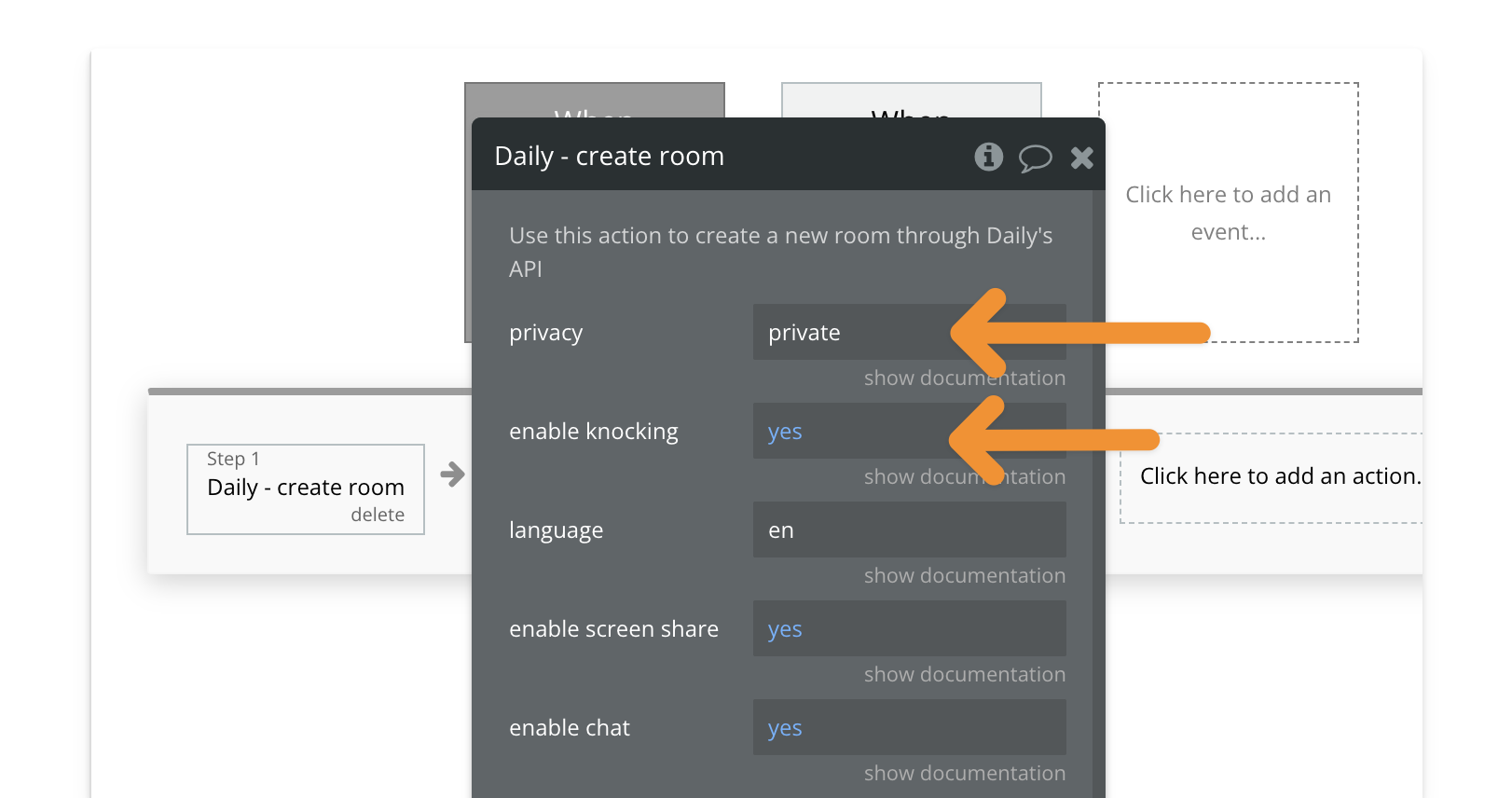 2️⃣ Generate a Meeting Token → The workflow generates an owner token, giving the host full control, including letting others in.
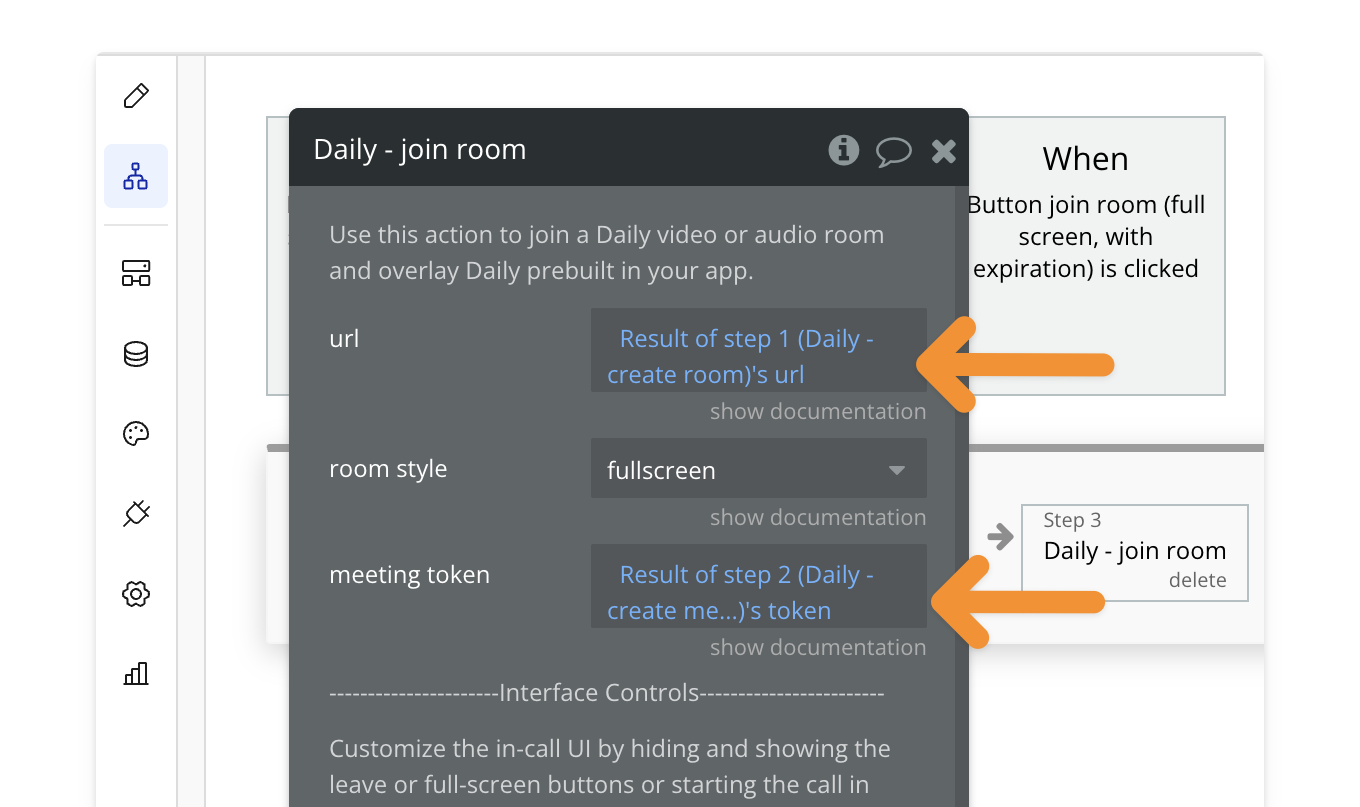
 3️⃣ Join Room in Full-Screen Mode → The host joins the call in full-screen.
Key Features
How to Install
🔍 Preview how to add a workflow to your editor.1
Find the workflow
Open the PailPal extension, go to All and search for “Join Daily
Room (Full-Screen, Private)”.
2
Copy the workflow
Click “Copy” on the workflow card to copy both the button and workflow.
3
Select destination
In Bubble, navigate to where you want to add the button.
4
Paste the workflow
Press CMD+V (Mac) or CTRL+V (Windows) to paste the workflow into your
app.
5
Customize (Optional)
Modify the button’s styling to match your app’s design.